In December 2024, Oracle reached a major milestone with the release of Fusion Middleware (FMW) 14.1.2. This release brings critical updates to the entire stack, including WebLogic Server, Coherence, Oracle Identity & Access Management, SOA Suite, BPM, Data Integrator (ODI), WebCenter, and Forms & Reports.
Since WebLogic serves as the foundational runtime for most of these products, its evolution is central to the modern middleware ecosystem. Perhaps the most significant change in this release is the decommissioning of the traditional “Blue” WebLogic Admin Console in favor of the new, open-source WebLogic Remote Console (WRC).
Why the Change?
The classic WebLogic console served us well for over 15 years, but its legacy framework became difficult to modernize and support in cloud-native environments. The new WebLogic Remote Console is a complete reimagining of the management interface. Built on the Electron.js framework, it is lightweight, fast, and modern.
As an open-source project, the source code is publicly available on GitHub, allowing the community to fork the repository, contribute improvements, and stay updated with frequent releases.
Key Benefits of the WebLogic Remote Console (WRC)
The transition from the “Blue Console” to WRC isn’t just a UI facelift; it offers several architectural advantages:
Multi-Domain Management: Unlike the old console (one domain per browser tab), WRC allows you to connect to and manage multiple WebLogic domains—running anywhere—from a single interface [04:13].
Performance & Flexibility: WRC operates as a standalone client (Desktop or Browser-based) that communicates with servers via REST APIs [05:03]. This makes it significantly faster and more responsive than the old server-side rendered console [14:20].
Lightweight Footprint: By removing the console files from the server side, the WebLogic binary size is reduced by approximately 500 MB, which is a massive win for Docker and Kubernetes deployments [04:36].
Modern Troubleshooting: Features like direct Thread Dumps and integrated log viewing are built into the UI, eliminating the need to jump into the server command line for basic diagnostics [09:34].
Improved Security: Because the console doesn’t need to run on the production server, you reduce the attack surface of your middleware environment.
Getting Started
Whether you prefer a Desktop application for your Mac/Windows/Linux machine or a centralized browser-based deployment, WRC gives you the flexibility to choose. The project is well-documented with a comprehensive FAQ to help you navigate the transition.
Watch the Webinar
I recently hosted a webinar that dives deep into the features of the WebLogic Remote Console, including a live demo of application deployment and monitoring.
If you are planning an upgrade to 14.1.2 (14c), adopting this console is a must. Watch this 17-minute recording to get up to speed:
(In this video, I cover everything from connecting to multiple domains [07:09] to performing real-time application deployments [12:44] and monitoring JVM health [09:26].)
**Manage WebLogic Anywhere: The Modern Remote Console**
It has happened,- Oracle is pleased to announce the release of Oracle WebLogic Server and Coherence Version15.1.1.
The main difference from WebLogic 14.1.2 is that the new version 15.1.1 implements updated support for Jakarta EE 9.1!
Why it happened?
Historical background:
Jakarta EE, formerly known as Java EE (and initially J2EE), is a set of specifications that extends Java SE for enterprise-level application development.
While Oracle previously owned and managed Java EE, the project was transferred to the Eclipse Foundation in 2017 and subsequently renamed to Jakarta EE to avoid trademark issues with the “Java” brand, which remains under Oracle’s ownership.
Key points regarding Jakarta EE and Oracle Java EE:
Ownership and Evolution: Once Oracle transferred Java EE to the Eclipse Foundation, leading to the rebranding as Jakarta EE. This shift aimed to foster a more open and community-driven development model for enterprise Java specifications.
Namespace Change: As part of the transition, the “javax” namespace used in Oracle Java EE was changed to “jakarta” in Jakarta EE to resolve trademark conflicts.
This requires code migration when moving from older Java EE versions to Jakarta EE. Simply put, application libraries and application servers must be consistent: either both must use “javax” or both must use “jakarta”.
Finally, “jakarta” package namespaces, can now be seamlessly deployed to WebLogic Server and Coherence 15.1.1!
It provides deep visibility into the application performance from end-user experience down through to the application server requests.
For many customers, the PeopleSoft (PSFT) Application is critical to business operations. With OCI Application Performance Monitoring (APM) service, administrators can:
Analyze all end user experience with accessing PeopleSoft web pages.
Trace transactions across various components and isolate problems to the impacting application or infrastructure tier.
Has ability to drill into application code.
Generally, APM tools cannot drill into the SQL code for the PeopleSoft application. This inability occurs is because, the SQL call is performed in the Tuxedo layer. However, OCI APM service offers a unique feature to overcome this limitation. It can perform instrumentation of outbound JOLT calls from WebLogic to Tuxedo. This helps at least understand how much time is spent in this layer.
Easily Capture End Username for user sessions without modifying application code
Search in context based on PeopleSoft attributes including: – Portal Name – Portal Object Name – and more
The OCI Application Performance Monitoring (APM) service allows administrators to monitor and observe the E-Business Suite web applications.
It provides deep visibility into the application performance from end-user experience down through to the application server requests.
For many customers, the E-Business Suite (EBS) Application is critical to business operations. With OCI Application Performance Monitoring (APM) service, administrators can:
Analyze all end user experience with accessing EBS web and form pages.
Trace transactions across various components and isolate problems to the impacting application or infrastructure tier.
Has ability to drill into application code and SQL calls to the database
Easily Capture End Username for user sessions without modifying application code
To search in context, you can use out of box EBS attributes auto generated from traces. These attributes include: – EBS Function Name – EBS Class Package Name – EBS Forms Name – and more ….
This blog title seems quite easy and simple but there are bit of steps to manage SOA Market Place Image (SOA MP) Database password reset configuration within application tier which I will discuss in this blog.
There could be multiple situations when user needs to change SOA MP Database password e.g. SOA MP DB password might got expired, or about to expire hence that’s must need to reset to new password which should get further updated all relevant places inside SOA application tier.
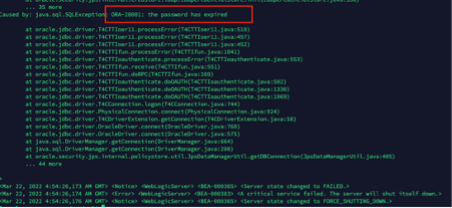
In my case it was for SOA dev/test environment eventually SOA MP DB password has default expiry set for 6-month time and it got expired, due to which SOA application was not coming up and constantly keep throwing below error-
Caused by: java.sql.SQLException: ORA-28001: the password has expired
Note:
In my case below software version were used.
SOA Suite 12.2.1.4
Oracle Autonomous Database 19c
Instruction given here may not work exactly for another SOA and DB version.
To fix above problem. We need to perform below steps –
Need to find out how many places within SOA Application tier DB password been used?
Are the SOA MP DB users locked? or Password expired? or both
Reset & unlock the SOA MP DB user’s password
Create encrypted value of new password for WebLogic Data source & update all Data source files with this new encrypted password and restart all WLS Admin/SOA servers.
Note: If step 4 doesn’t work (In my case, it hasn’t worked but as per Oracle documentation it should work. I may be doing some mistake which hard to troubleshoot so I took alternate path as workaround)5
5. (Optional) force WebLogic to start in Development mode instead of Production mode as clear text password not accepted in Production mode inside JDBC configuration files.
6. (Optional) Use new password as clear string inside JDBC configuration file, bring up WebLogic server and again update new password from WebLogic console for all Data sources, this will encrypt database password inside data source files.
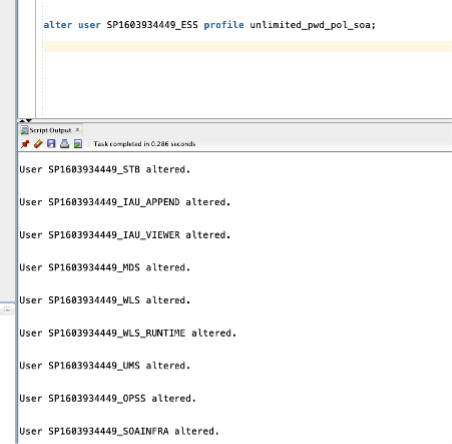
7. Create new DB profile with UNLIMITED limit and assigning to each SOA DB users to avoid password expiry in future.
Need to find out how many places within SOA Application tier DB password been used? –
SOA interact with Database using WebLogic Data source which act as bridge between application tier to Database tier. So, we need to know how many WebLogic Data sources using the SOA Database. There are two ways you can validate this –
If WebLogic Admin server up and running then go to console>>data sources >> and make a note of all Data source except your Custom one which you might have created for some other purpose. E.g.
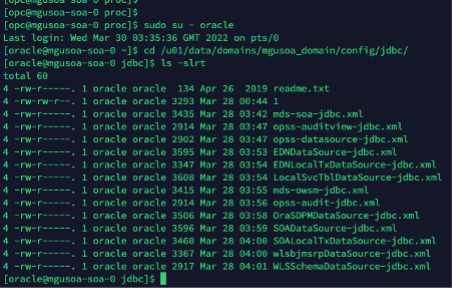
b) If WebLogic server not up and running (which most likely the case) then ssh to server where SOA binaries and domain reside and find out ‘jdbc’ folder, which will list out all Data sources which exists within WebLogic.
E.g.
/u01/data/domains/mgusoa_domain/config/jdbc/
So, now first challenge is sorted out, now we know what are all Data sources which are using SOA MP database, so if we change SOA MP database password all these Data source files needs to be updated with new password.
Are the SOA MP DB users locked? or Password expired? or both
Now, let’s move to next step and check whether SOA MP Database DB users are locked, or password expired or both.
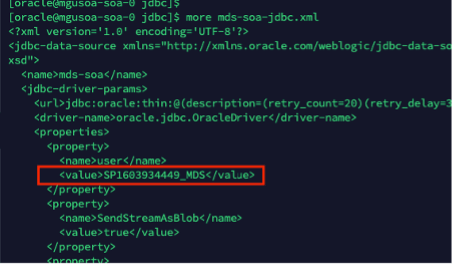
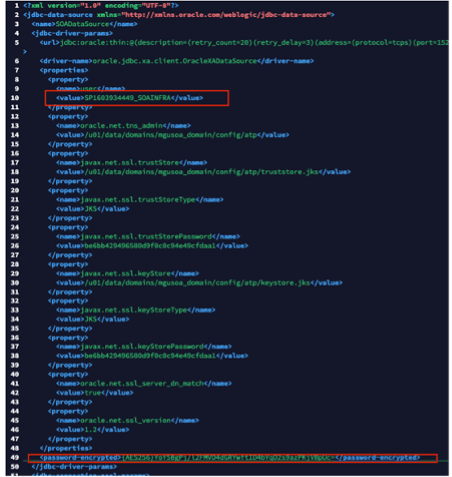
In order to do that, first you need to know DB users name used for SOA. One quick and easy way to open one of Data source files and find out DB prefix e.g. “SP1603934449”
Once you know DB prefix, run below query in SOA Database to know all SOA DB users.
select username from dba_users where username like 'SP1603934449%';
So, now you know all the SOA DB users within SOA Database which are used by SOA application tier. Next step to check each of them whether they are locked, or password expired.
Run below sql query to know their status –
select username, account_status from dba_users where username like 'SP1603934449%';
You should be able to see “account_status” column value either “LOCKED” or “EXPIRED & LOCKED”
In my case most of them with status “EXPIRED & LOCKED”
Reset & unlock the SOA MP DB user’s password
ALTER USER SP1603934449_IUA identified by Lxxx#1xxxxx;
ALTER USER SP1603934449_SOAINFRA ACCOUNT UNLOCK;
commit;
Once password reset and unlocked, run the below SQL query again and account status should be “OPEN” now
select username, account_status from dba_users where username like 'SP1603934449%';
Create encrypted value of new password for Weblogic Datasource & update all datasource files with this new encrypted password and restart all WLS Admin/SOA servers.
WebLogic data source files doesn’t except password in clear text if, WebLogic running in “Production” mode. If WebLogic running in “Development” mode, then it can accept clear text password. In my case, although it was dev/test environment but unfortunately it was set for “Production” mode, so I have to generated encrypted value of new password.
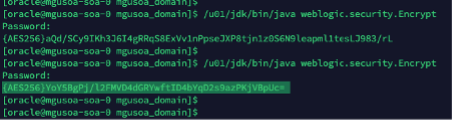
Run the WebLogic Encryption Utility and enter the password you set for the database schemas:
/u01/jdk/bin/java weblogic.security.Encrypt
password: new_password
Once you run “/u01/jdk/bin/java weblogic.security.Encrypt” command it will ask to type new password, type the new password. It will further generate encrypted password value as highlighted in above screen shot.
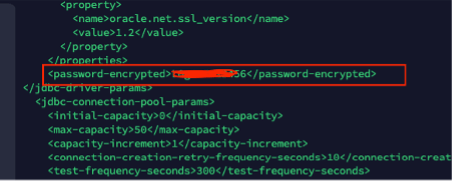
Once you know the new encrypted value for new password, update all the JDBC data sources files one by one with this new encrypted password and restart the WLS admin/SOA Servers
Your WebLogic server should be up and running after this change.
Note: If step 4 doesn’t work (In my case, it hasn’t worked but as per Oracle documentation it should work. I may be doing some mistake which hard to troubleshoot so I took alternate path as workaround)
(Optional) force WebLogic to start in Development mode instead of Production mode as clear text password not accepted in Production mode inside JDBC configuration files.
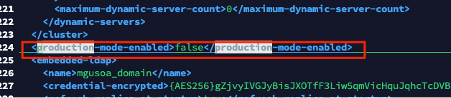
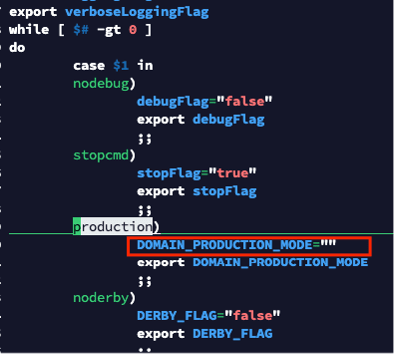
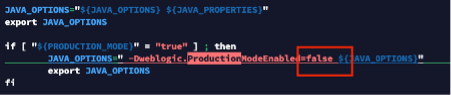
You must update multiple configuration file to force WebLogic to start in “Development” mode.
I have updated below 4 configuration files. The full path is just for reference, you must use your environment path to find out these files. Make Production value either “false” or “” depending up on file existing value.
Once above configuration is done, now you can update all JDBC data source files with clear text password
Once all JDBC data source xml files got updated with new password in clear text format.
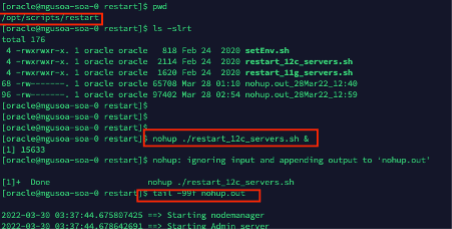
Restart the WLS admin and SOA server using out of box script available in SOA Market Place Image
/opt/scripts/restart/restart_12c_servers.sh
Admin server should go in running mode
Now you can access WebLogic Admin console and start remaining servers if needed.
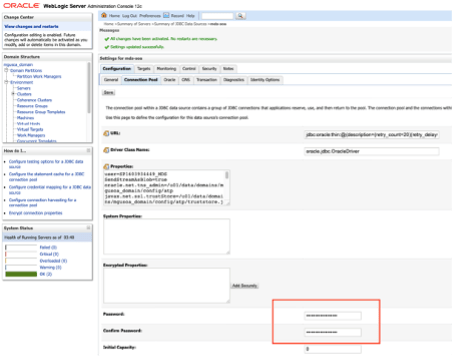
Last steps to update all data source from Weblogic console again, this will update all JDBC data source files in backend with encrypted password instead of clear text password. Use the same clear text password from WebLogic console for all Data source files and click save button, this will replace clear text password in backend to encrypted password.
Create new DB profile with UNLIMITED limit and assigning to each SOA DB users to avoid password expiry in future.
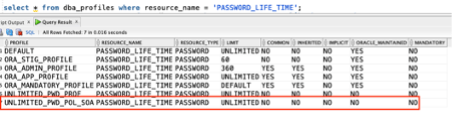
Above command should create a database profile with password expiry set to unlimited and can be verified by running below command
select * from dba_profiles where resource_name = 'PASSWORD_LIFE_TIME';
Now, set all SOA DB Users to use that profile.
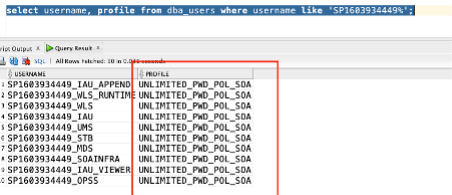
Run below command to check whether profile for each SOA Database user been changed or not?
Above step hopefully will force SOA DB users password not to expire in future and will help to avoid all above steps. However, that’s not recommend for Production environment.
Oracle API Platform’s API Implementation has two service naming convention 1) API Request 2) Service Request.
API Request – is the endpoint to which users or applications send requests for your API.
Service Request – is the URL at which your back-end service receives requests.
In this blog we are going to discuss what are the additional configuration we need to done inside API Platform Gateway Server while invoking a HTTPS Service Request URL.
Since, its HTTPS URL obviously there is associated SSL cert with that URL which is signed by Certificate Authority.
Recently, I have been doing one POC where I was invoking a Service Request HTTPS URL but it was not working and later found out it’s because of associated SSL certificate was not configured in Weblogic JKS Keystore.
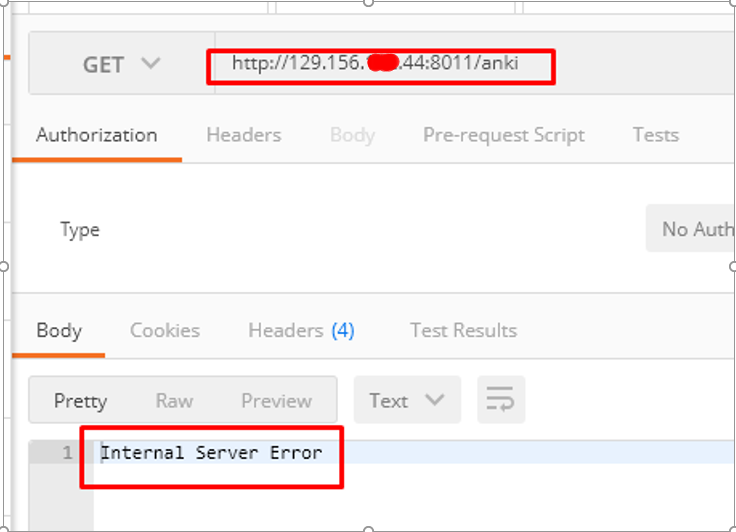
Before, I get into detailed solution, let me tell you bit more about problem. At very initial stage when I tried creating an API which is in-turn calling an HTTPS service request, it was failing while invoking that service from rest POSTMAN tool and was getting “Internal Server error” as per below snap.
In one of my recent Event engagement, I was expected to provision 50+ users in Weblogic. Creating users in Weblogic is not cumbersome process, it’s fairly easy. However, when you need to do in bulk it can take hours.
So, I just came up with simple WLST script which take an configuration file as input which contains all the server credentials required to make connectivity and list of users, description and group name etc and create and delete users in Weblogic.
Note: I have tested this script in Weblogic 12.2.1.2 but it should work in all Weblogic version as long as the beans which I have used inside python not been change in particular Weblogic Version.
Creating Users
createUserMultiGrp.properties
This is configuration file which keep server credentials and all users name along with description, group and password.
Who doesn’t like the security. This is one of critical element of our IT Infrastructure. Recently I was doing one POC and got requirement to setup a valid SSL certificate in Weblogic. However, since it was just an POC we were not having any valid SSL certificate issued by some Certificate Authority. Later, I came across for one website called https://letsencrypt.org/ . Let’s Encrypt is a free, automated, and open certificate authority (CA). they give people the digital certificates they need in order to enable HTTPS (SSL/TLS) for websites, and its free, yes you heard correctly It’s FREE !!!. You don’t need to pay them at all. So if you need a valid SSL certificate for your POC or even for Production environment you can get one from them. Although their certificate comes with 3 month validity, so while using for Production environment user need to keep renewing with them with simple automated process.
In this blog we will be learning how we can generate letsencrypt SSL certificate, what’s prerequisite to get the certificate and setup that certificate in Weblogic server to enable SSL communication.
So, Lets move on. We will be doing below stuff in sequence –
Get a registered domain name (This required while generating SSL Cert)
Install Certbot ACME Tool and Apache HTTP Server
Generate Letsencrypt SSL Certificate
Configure Letsencrypt SSL in Weblogic Identity Store










 RedThunder.Blog