
I have been recently engaged in one assignment where I was expected to make connectivity with NetSuite to create Customer inside NetSuite. However, condition was to connect NetSuite using “Token based Authentication” only. That was Customer’s key requirement to establish secure connectivity to NetSuite.
Token based authentication needs many input parameters such as WSLD URL, Consumer Key, Consumer Secret, Token, Token Secret and Account ID.
I had to spent bit of time to work-out how to get all above parameters values and in this blog I just want to share that learning.
There is already NetSuite Connector Documentation available which describe the instructions about Token Based Authentication. This blog is just expanding that document with some additional info and screenshots.
So, let’s get started-
Prerequisite
Before you establish connectivity from OIC to NetSuite using Token Based Policy there are certain prerequisite which you need to accomplish as listed below-
Enable Client/Server SuiteScript, REST/SOAP Suite Talk and Token based Authentication
To connect to Oracle NetSuite, you must have registered with Oracle NetSuite and enabled key features (such as SOAP and REST web services) on your Oracle NetSuite instance.
1. Visit http://www.netsuite.com to register with Oracle NetSuite. Ensure that you obtain an account with administrator privileges.
2. Enable connection-related features on your Oracle NetSuite instance.
a. On your NetSuite home page, select Setup, then Company, and then Enable Features.
b. Click the SuiteCloud subtab.
c. In the SuiteScript section, check the following boxes:
i. CLIENT SUITESCRIPT. Click I Agree on the SuiteCloud Terms of Service page.
ii. SERVER SUITESCRIPT. Click I Agree on the SuiteCloud Terms of Service page.
d. In the SuiteTalk section, check the following boxes:
i. SOAP WEB SERVICES. Click I Agree on the SuiteCloud Terms of Service page.
ii. REST WEB SERVICES. Click I Agree on the SuiteCloud Terms of Service page.

e. In the Manage Authentication section, check the TOKEN-BASED AUTHENTICATION box. Click I Agree on the SuiteCloud Terms of Service page.
You must enable the TBA feature if you want to use the TBA authentication policy to connect to Oracle NetSuite from external applications.

f. Click Save.
Create an Integration Role with Token-Based Authentication (TBA) Permissions
Create a new role and assign TBA permissions along with other necessary permissions (specific to your integration) to it. You’ll assign the Oracle Integration user account—which you’ll subsequently create—to this role.
Note:
As a best practice, avoid using the Administrator and Full Access roles/users in Oracle NetSuite connections that use the TBA security policy.
To create a new role:
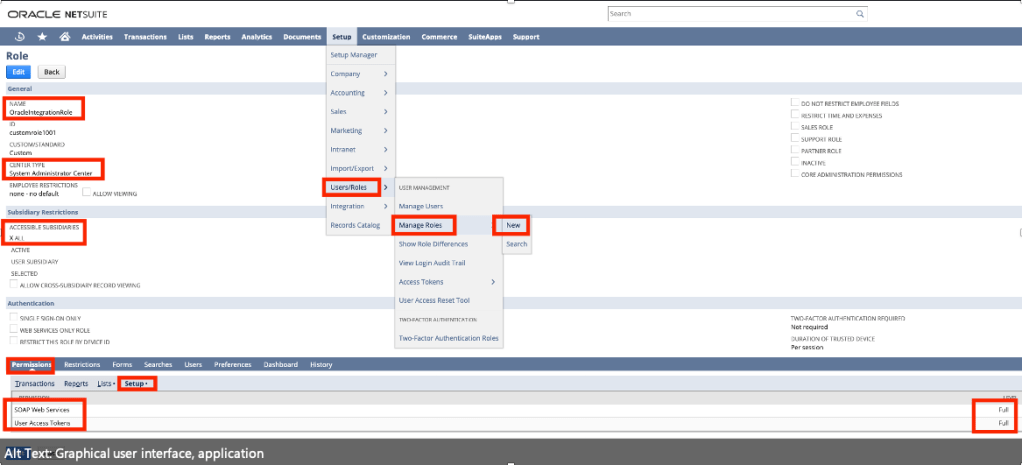
1. On the NetSuite home page, select Setup, then User/Roles, then Manage Roles, and then New.
2. On the Role page:
a. Enter a name for the role, for example, Oracle Integration Role.
b. In the CENTER TYPE drop-down field, select System Administrator Center.
c. In the Subsidiary Restrictions section, select All. For information on subsidiary restrictions, see Restricting Role Access to Subsidiaries.
d. On the Permissions tab, To provide TBA permissions to the new role, you must add the User Access Token permission to the role with full access. This permission is present on the Setup subtab under the Permissions tab.
You can add other permissions to the role depending on the tasks you want to allow the users assigned this role to perform. For any custom role, you must specifically add the SOAP web services permission with the Full level. See Assigning the SOAP Web Services Permission to a Role.
e. After you’ve added all the necessary permissions, click Save to create the new role.
Create a User Account for Oracle Integration
Create a user account for Oracle Integration and assign this account to the Token Base Authentication role “OracleIntegrationRole” you created previously. You’ll use the credentials associated with this user account to connect to NetSuite from Oracle Integration.
follow the procedure provided here:
1. On the NetSuite home page, select Lists, then Employees, then Employees, and then New.
2. On the Employee page:
a. In the NAME fields, enter a first name and last name for the user, for example, Integration User05.
b. In the EMAIL field, enter a valid email address.
c. In the SUBSIDIARY drop-down field, select a subsidiary of your choice.
d. Scroll down and click the Access tab to perform additional configurations.
i. Select the GIVE ACCESS and MANUALLY ASSIGN OR CHANGE PASSWORD check boxes.
ii. In the PASSWORD field, enter a password for the user account.
iii. Re-enter the password in the CONFIRM PASSWORD field.
iv. To assign this user to the “OracleIntegrationRole“ TBA role created previously:
• With the Roles subtab selected, select the TBA role from the ROLE drop-down field; for example, Oracle “OracleIntegrationRole”.
• Click Add.
e. Click Save to create the new user record.

Create an Integration Record for Oracle Integration
Before you can create and assign API tokens (for TBA) to a user account, you must create an integration record for the application that will use this user account to access NetSuite.
Create an integration record for the Oracle Integration application.
1. On the NetSuite home page, select Setup, then Integration, then Manage Integrations, and then New.
2. On the Integration page:
Enter a name for the integration record, for example, “ExtIntegrationApp”
a. Optionally, enter a description for the record.
b. Leave the Enabled option selected in the STATE drop-down field.
c. On the Authentication tab:
i. Leave the TOKEN-BASED AUTHENTICATION check box selected.
ii. Deselect the TBA: AUTHORIZATION FLOW and AUTHORIZATION CODE GRANT check boxes.
d. Click Save.
The confirmation page displays the client credentials for this integration record or application.


Create an Access Token for the User Account
Create and assign an access token to the Oracle Integration user account.
1. On the NetSuite home page, select Setup, then User/Roles, then Access Tokens, and then New.
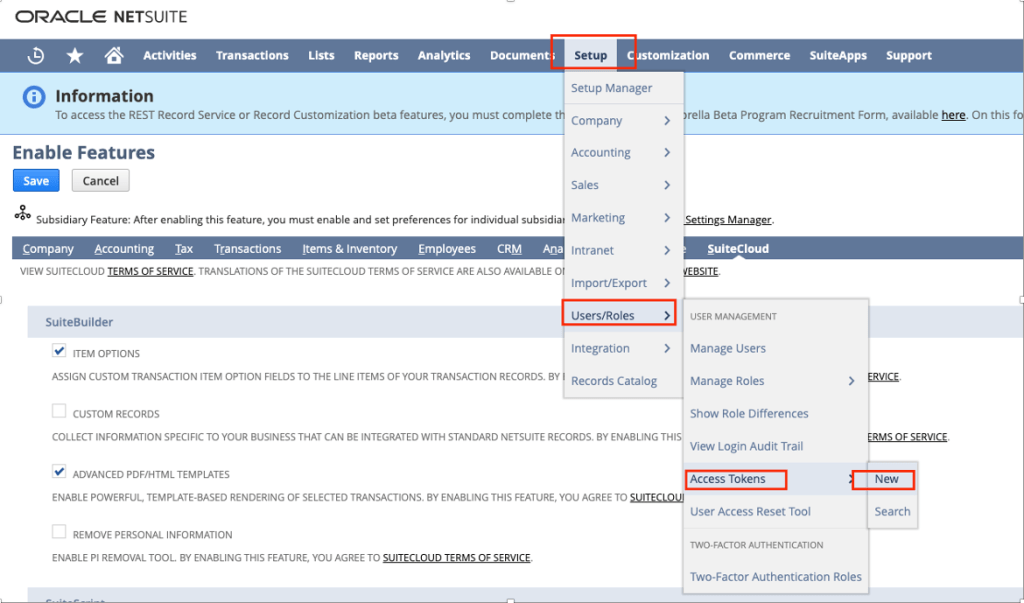
Note: “Access Tokens” page was not appearing before, only when I executed “Enable Client/Server SuiteScript, REST/SOAP Suite Talk and Token based Authentication” section as per this document then only “Access Token” page appears.
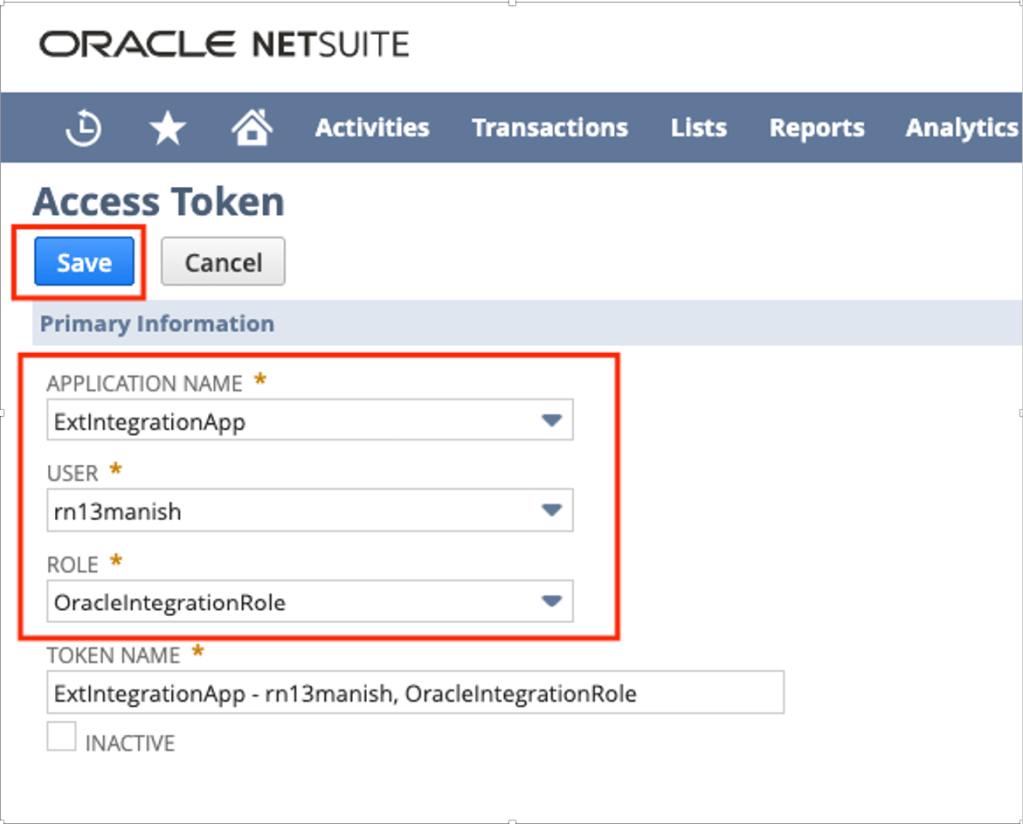
2. On the Access Token page:
a. In the APPLICATION NAME field, select the integration record created previously e.g. “ExtIntegrationApp”
b. In the USER field, select already existed Oracle Integration’s user account e.g. “rn13manish”
c. In the ROLE field, select the appropriate Token Base Authentication role e.g. “OracleIntegrationRole”
d. Leave the TOKEN NAME field unchanged.
e. Click Save.
The confirmation page displays the token values for the user account.
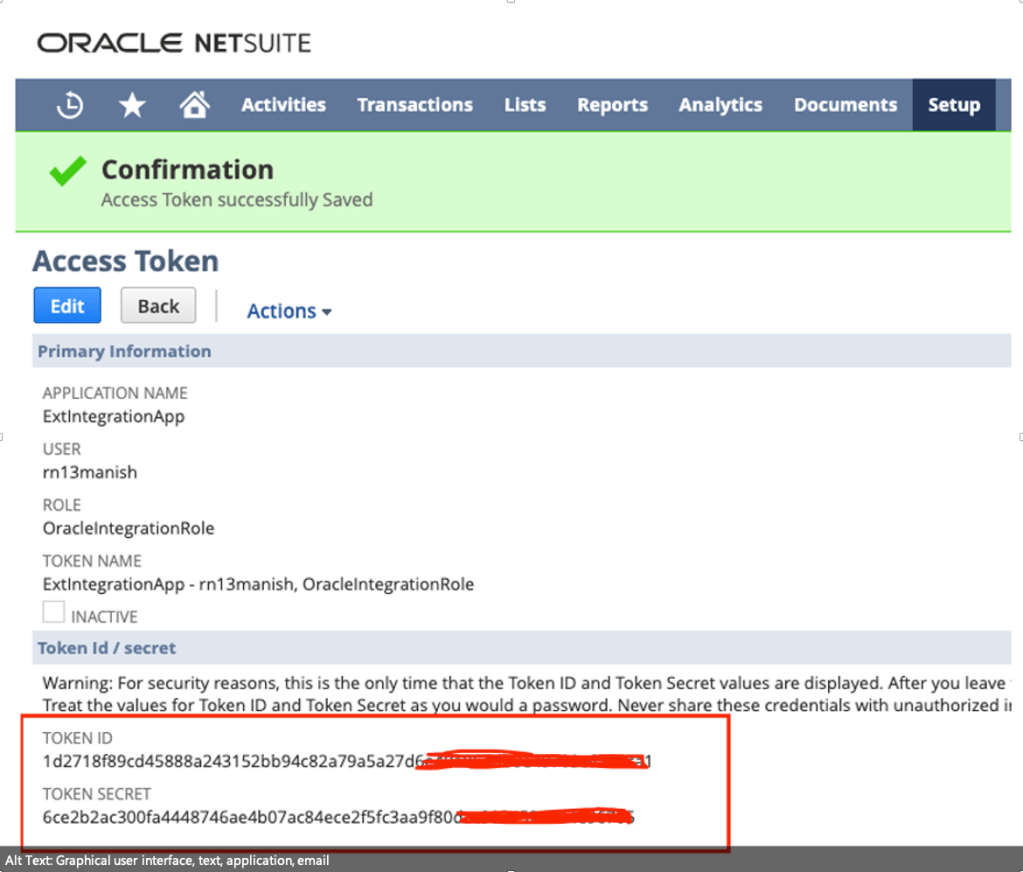
3. Note down the Token ID and Token Secret values. You’ll use these credentials to connect to NetSuite from Oracle Integration.
Make a Note of the NetSuite Account ID
Along with other credentials, you’ll require the NetSuite Account ID to connect to NetSuite from Oracle Integration.
To view your account ID:
1. On the NetSuite home page, select Setup, then Integration, and then SOAP Web Services Preferences.
2. Note down the Account ID displayed at the top of the page.
3. Click Cancel to exit the page.

Assemble the Oracle NetSuite WSDL URL
You need to draft the NetSuite WSLD using below technique –
Sample URL
So, In above URL you need to replace two things 1) Your NetSuite Instance URL and NetSuite Application Version.
To get those value follow the below steps.
NetSuite Instance URL –
Navigate to Setup >> Company >> Company Information >> Get Suite Talk URL
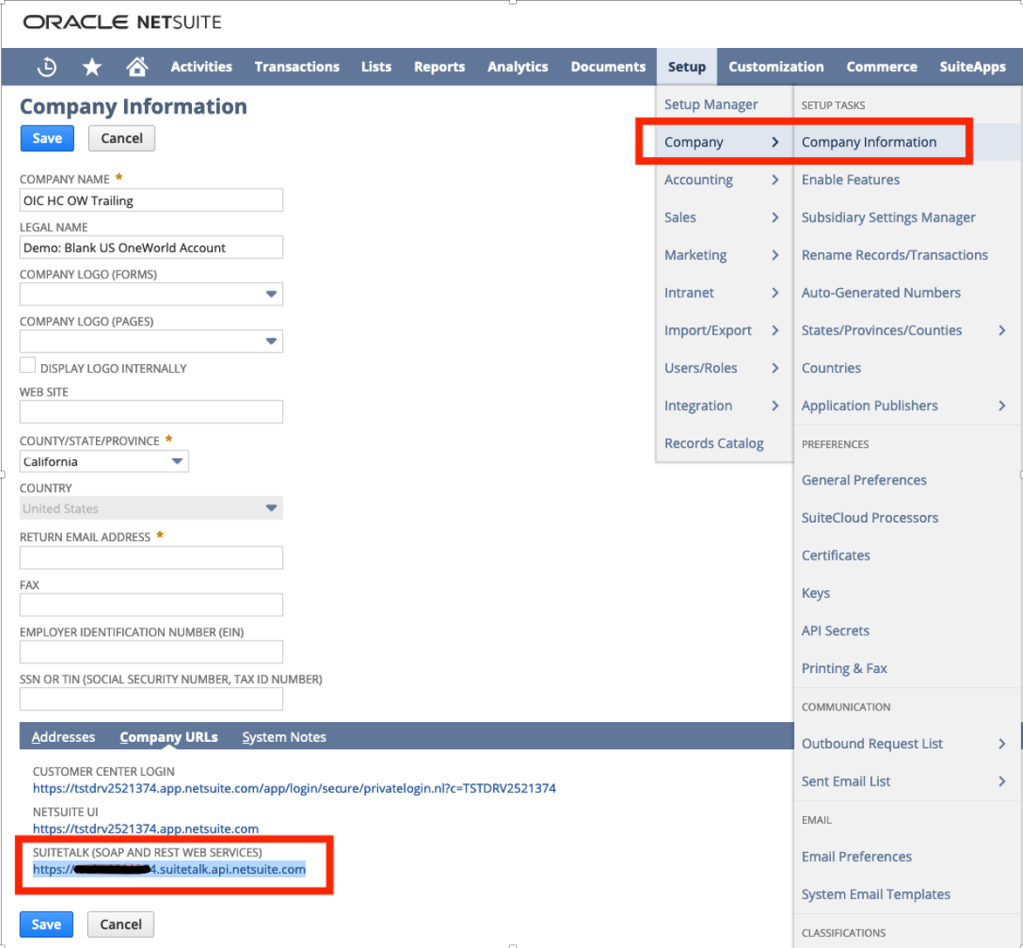
e.g. https://tstdrvxxxxxxx.suitetalk.api.netsuite.com
Get NetSuite Version –
Login to NetSuite Instance and bottom of home page you can see version –

e.g., 2021.2, now you need to convert this to this v2021_2_0
Final URL –
Now you just replace above two values in final URL –
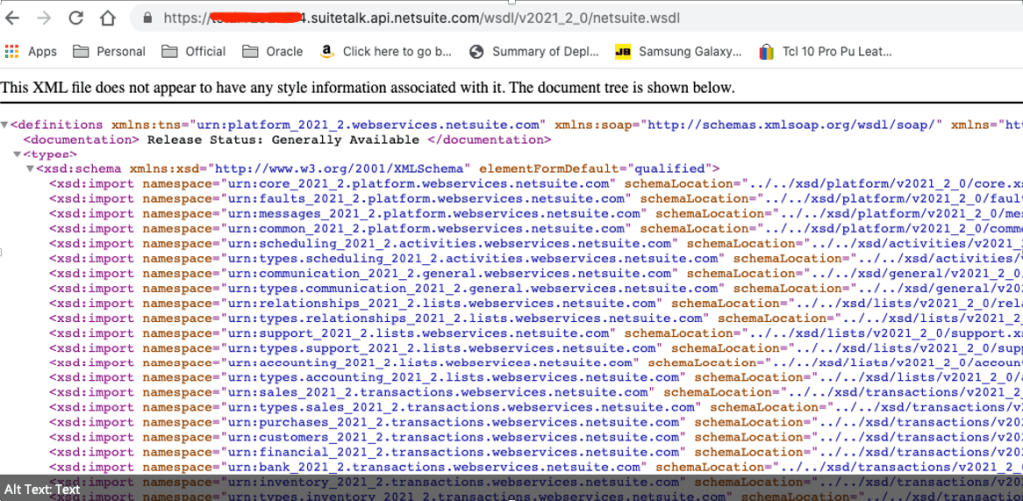
https://tstdrvxxxxxx.suitetalk.api.netsuite.com/wsdl/v2021_2_0/netsuite.wsdl
Once you WSDL are ready, make sure you test in browser and it should open –
OIC Connection to NetSuite Using Token Based Authentication
Once all parameters values such as WSLD URL, Consumer Key, Consumer Secret, Token, Token Secret and Account ID are ready then make connection to NetSuite using NetSuite Adapter from OIC Home Page >> Integration >> Connection
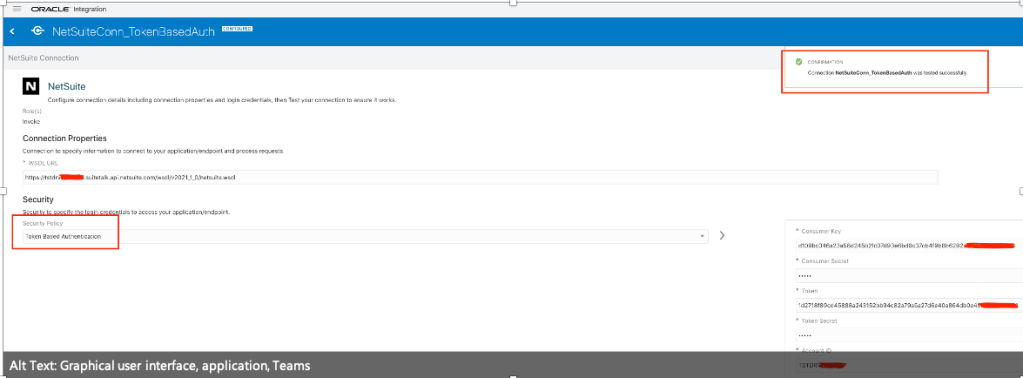
Once connection is established, you can perform any CRUD operation for any business object as per your option available. In my case I did create Customer inside NetSuite by posting a JSON payload via REST Adapter to NetSuite Adapter.
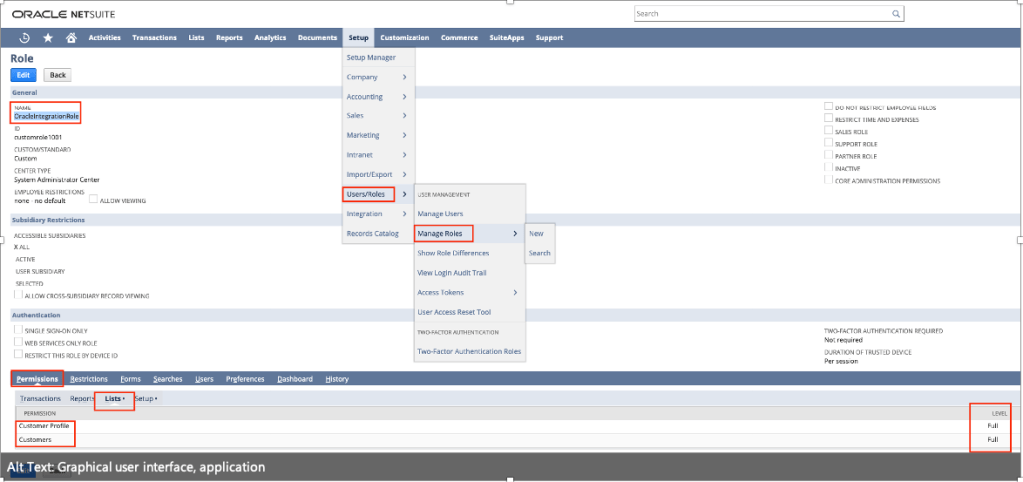
Note: The role what you using to communicate to NetSuite e.g. in my case it was “OracleIntegrationRole” must have given permission to particular business object such as “Customers”, otherwise your integration will be keep failing and will give below error message –
{
“Status” : {
“IsSuccess” : “true”,
“Type” : “ERROR”,
“Code” : “INSUFFICIENT_PERMISSION”,
“Message” : “Permission Violation: You need the ‘Lists -> Customers’ permission to access this page. Please contact your account administrator.”,
“FaterSubmittedFailed” : “”
},
“ContactRef” : {
“InternalId” : “”,
“ExternalId” : “”,
“Name” : “”,
“Status” : “false”
}
}
In order to fix above error. Make sure you give “Customer” and “Customer Profile” permission to “OracleIntegrationRole” role.
Here is my OIC Integration.

Here is my mapping.
Note:
There could be some mandatory field for the object what you trying to create inside NetSuite, so first try creating object directly using NetSuite frontend with minimal fields which will give you idea what are the mandatory fields needed for that object.
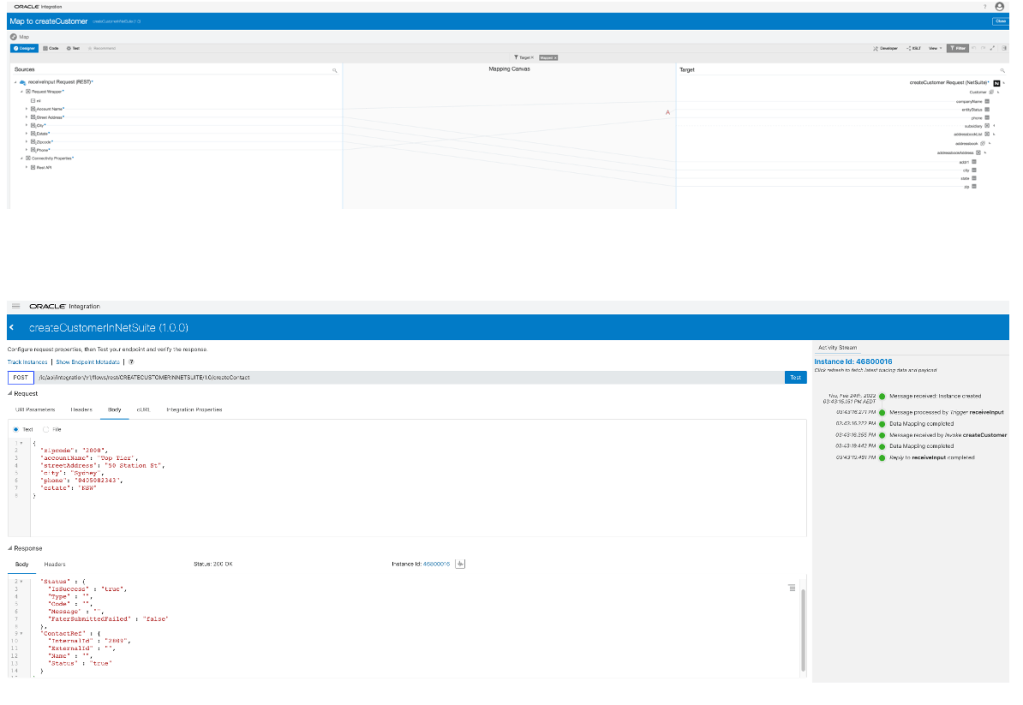
Once above JSON got posted and I got success reply, you can further login into NetSuite to validate whether that particular Customer got created or not. In my case its absolutely got created.


Happy Blogging 🙂


 RedThunder.Blog