
Recently, while assisting a customer with a high-priority issue, I encountered a connection problem in my personal Oracle SOA Suite environment. As part of a replication exercise, I needed to connect my JDeveloper instance to an Oracle SOA Metadata Services (MDS) repository, which is a critical component for managing shared artifacts in a SOA environment. The unexpected error I received had no clear solution on internal or Oracle support forums, so I’m sharing the solution here to help fellow SOA developers.
My environment for this exercise was Oracle SOA Suite 12.2.1.4, backed by an Oracle Autonomous Database (ATP) 19c.
The Problem:
I was unable to establish an MDS repository connection from JDeveloper, which is a prerequisite for deploying shared SOA artifacts like x-ref, XSD, XSLT, and WSDL files. The specific error message I received was:
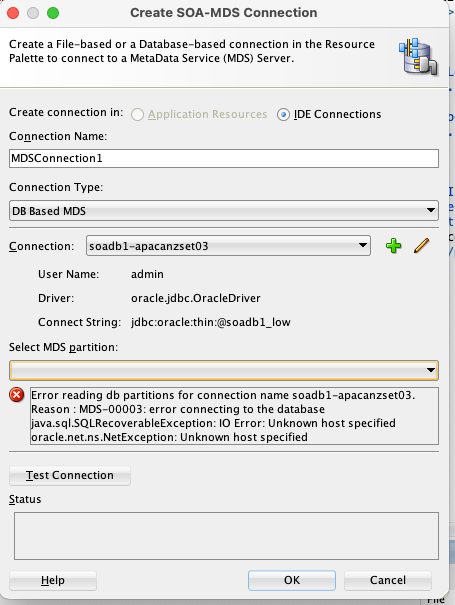
Error reading db partition for connection name soadb1-apacanzset03Reason : MDS-00003: error connecting to the databaseJava.sql.SQLRecoverableException: IO Error: Unknown host specified]
The Solution:
The root cause of this error lies in the secure nature of the Oracle Autonomous Database. Unlike standard databases, ATP requires a Wallet file for secure connections. The Wallet contains crucial files like tnsnames.ora, truststore.jks, and keystore.jks, which are necessary for JDBC connections.
Steps to Configure the Connection:
- Download the ATP Wallet: First, download the
Wallet.zipfile from your ATP console. - Unzip the Wallet: Extract the contents of the zip file to a secure, easily accessible location.
- Create new folders: create folder structure “network>>admin” folder inside wallet folder and move tnsname.ora file into this location
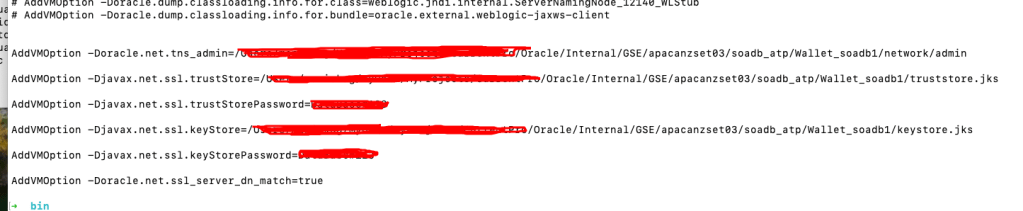
- Configure JDeveloper: Next, you must update the
jdev.conffile, located at$Middleware_HOME/jdeveloper/jdev/bin/, by adding the following Java options. These options point JDeveloper to the security files within your unzipped Wallet.- AddVMOption -Doracle.net.tns_admin=<Path to unzipped Wallet folder>
- AddVMOption -Djavax.net.ssl.trustStore=<Path to truststore.jks file>
- AddVMOption -Djavax.net.ssl.trustStorePassword=<your wallet password>
- AddVMOption -Djavax.net.ssl.keyStore=<Path to keystore.jks file>
- AddVMOption -Djavax.net.ssl.keyStorePassword=<your wallet password>
AddVMOption -Doracle.net.ssl_server_dn_match=true
- Restart JDeveloper: Restart JDeveloper to apply the new configuration settings.
- Create a Database Connection: Navigate to the
Databasenavigator, create a new connection using the <soadbname_MDS>user, and test the connection.

- Create an MDS Connection: Finally, go to
Windows > Resources > New SOA MDS Connection. Specify a name, select “DB based MDS,” choose the database connection you just created, and specify “soa-infra” as the partition. Test the connection, and it should now be successful.
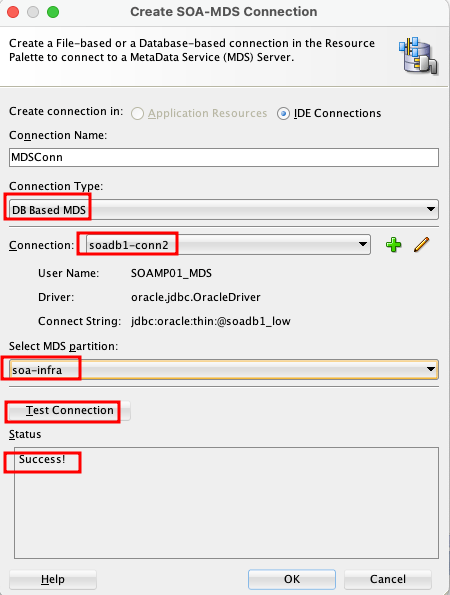
This process ensures that JDeveloper can securely authenticate and connect to your ATP-based MDS repository, allowing you to manage and deploy your design time MDS artefacts to Server side MDS artifacts.
 RedThunder.Blog